
Concepts in practice
Wi-Fi, your local network and the internet: three things, not one
A mental map for investigating a connection without changing settings blindly.
The Wi-Fi icon tells you something about your device’s wireless connection. On its own, it does not guarantee that the path to the internet is working.
The path has separate steps: device → wireless access point → local network/router → internet service. Mark a step as working only when you have observed it. The diagram is a teaching model; some homes combine functions in one box or use a different arrangement.
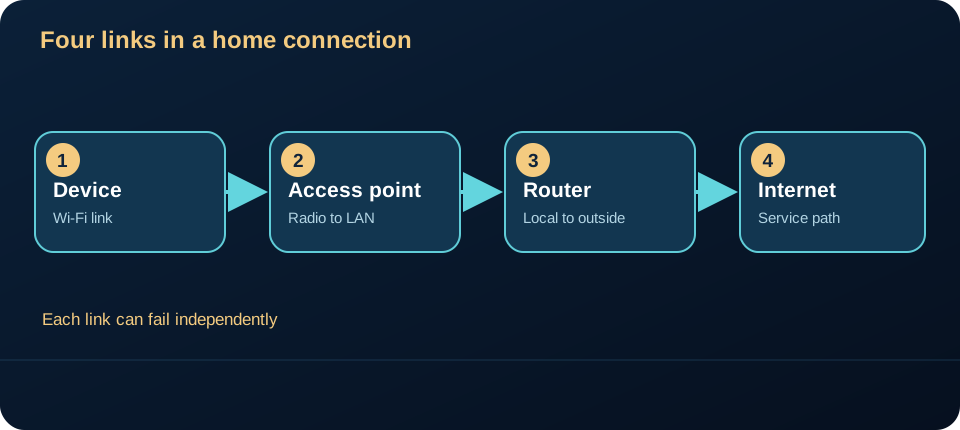
The first connection is local
An access point — AP — connects devices to the wireless network. At home, it is often integrated into the router, but “access point” and “router” are different functions.
A local area network — LAN — can continue to exist even when the provider’s connection goes down. That is why a computer may see another device at home and still be unable to open a website.
Private IP addresses are designed for communication inside a network without assigning every device a public internet address. This distinction is described in RFC 1918. The FTC’s home Wi-Fi guide describes the wireless connection to a home router; joining that radio network alone does not test every later link.
A name needs to find an address
DNS means Domain Name System. It associates names, such as a website’s name, with records used to locate network services. A failure at this stage can look like “no internet”, even when other parts of the connection work.
DHCP means Dynamic Host Configuration Protocol. In a typical home setup, it distributes network information automatically. It is not an encryption mechanism or a guarantee of trust.
The distinction matters when troubleshooting: a device may join Wi-Fi but lack usable IP configuration, or it may reach an outside address while a name lookup fails. RFC 2131 specifies DHCP configuration and address allocation; RFC 1034 describes the DNS name system. These are mechanisms, not a diagnosis of a particular outage.
A map of observations
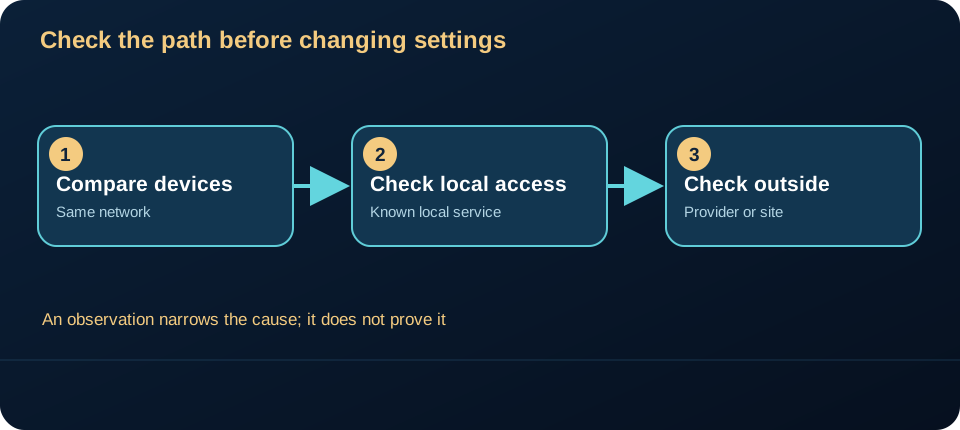
| Question | What the answer can suggest | What it cannot prove |
|---|---|---|
| Do other devices on the same Wi-Fi work? | Whether the problem may be isolated to one device | The exact cause on that device |
| Can a local service still be reached? | Whether some part of the local network is functioning | That the internet service is available |
| Does another connection load the same site? | Whether the site itself may still be available | That every part of the home connection is faulty |
Compare one observation at a time. A website may be unavailable for reasons outside your home network, and a reset can erase settings needed to reconnect.
An observation checklist
- Is only one device having trouble? Compare with another device on the same network.
- Is the device on the right network? Check the network name and expected configuration, without publishing passwords or sensitive screenshots.
- Has the provider reported instability? Check the official channel before resetting the equipment.
- Did the problem start after a change? Document what changed. A guided rollback is different from randomly changing several options.
The cybersecurity boundary
The asset is not merely “internet access”: it includes the devices and services on your local network, plus the router configuration that steers traffic. The Wi-Fi association proves a local radio link to an access point; it does not authenticate every website or prove that the router and provider are healthy. Likewise, access to the local network is a different privilege from access to the router’s administration panel.
For a defensive baseline, use supported WPA3-Personal or WPA2-Personal encryption, a unique Wi-Fi password, a separate unique administrator password, and current router software. Review remote administration rather than leaving it enabled by convenience. These are controls for distinct attack surfaces, not a promise of total protection. The FTC’s home Wi-Fi guidance supports these steps; the NIST consumer-router profile explains why router security affects the wider home network.
When investigating an outage, avoid treating an unexpected Wi-Fi network name, a DNS error or a browser warning as proof of a single attack. Preserve the exact symptom and compare a known device and a known destination. Never bypass a certificate warning to “test” connectivity.
One action for today
Draw three boxes: device → home network → provider/internet. Mark where you have evidence that things work and where you only have an assumption.
This simple diagram helps you ask support a better question — and avoids treating every problem as if it were the Wi-Fi password.
This original companion article develops the concept in Cyber Tech Wings Ep01; it is not a transcript. Technical references: RFC 1918, RFC 2131, RFC 1034, and FTC home Wi-Fi guidance. Checked 15 October 2026.